
Why Multi-Tier?
Multi-Tier promotions let you offer different discount amounts based on attributes such as order, customer, product, or shipping. This is ideal for anyone looking to encourage higher spend, reward loyalty, or create tailored promotions. With Multi-Tier, you can design rules that scale your rewards and give customers the right incentive at the right time.
Where to find Multi-Tier Discount?
When setting up your promotion, head to Step 3: Reward Settings. This is where you’ll find Multi-Tier Discount as a reward type option.
How Multi-Tier Works
It’s important to understand how Multi-Tier fits into the overall promotion setup:
-
Validation rules (Step 5) decide if the promotion applies to a customer.
-
Multi-Tier rules decide which reward to give once the promotion has validated.
For example, if you only want the promotion to apply when a customer has Product X in their basket, that rule should be added in Validation Settings.
If you don’t set any validation rules, the promotion will always validate and then simply apply the reward from the first matching Multi-Tier rule.
Setting Up Your First Tier
Start by deciding how many tiers you want in total. Then, build one tier at a time:
Add your master code – if you don’t use master codes, add a placeholder.
Create your rules – press Create Rule to open the rule builder. Press AND to get started, then choose a Category (Product, Customer, Shipping, Order, Advanced) and pick the attributes you want to use
For example, you might want your reward to change based on Order Total.
-
Tier 1: Order Total greater than or equal to £200
-
Tier 2: Order Total greater than or equal to £100 and less than or equal to £199
-
Tier 3: Order Total less than £100
This way, each tier is exclusive - only one can be true at a time. That’s the recommended setup.
If two or more tiers could technically be true at once, the tier priority (the order in which tiers are listed) will decide which reward applies, the one listed highest will take priority.
Set the discount type – choose between Fixed Amount Off (e.g., £10) or Percentage Off. If you select a percentage, you can also set a maximum discount to cap the promotion at a currency value.
Once the first tier is complete, repeat the process for the remaining tiers.
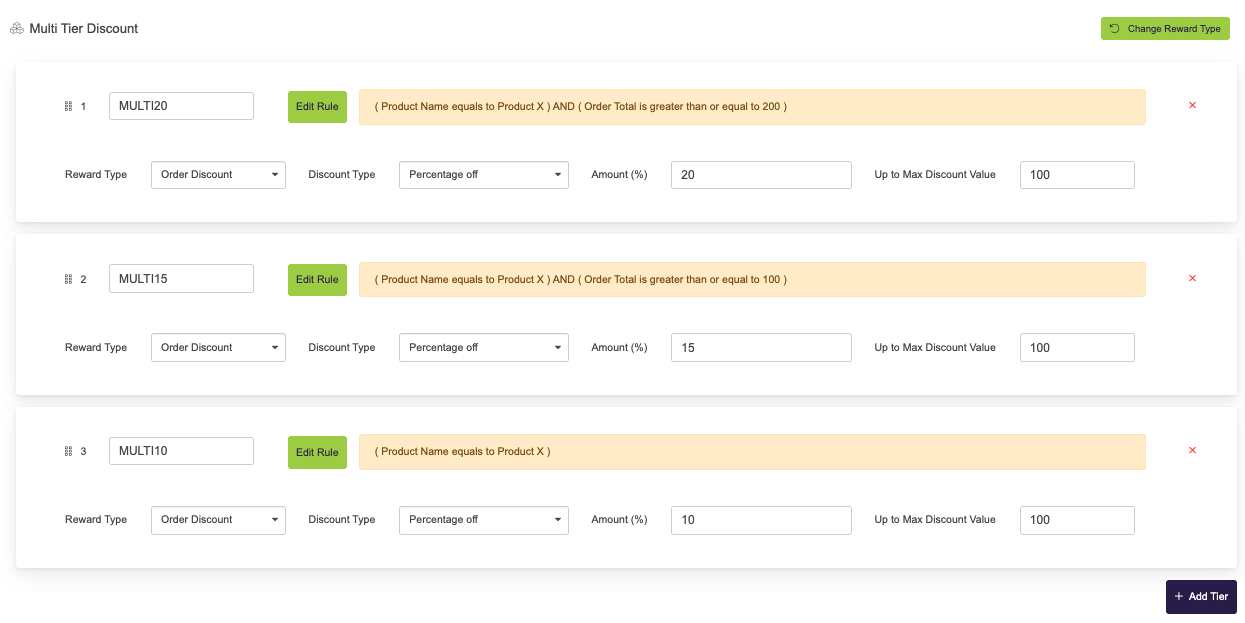
Tiers are evaluated top to bottom. Don't worry if you have created them in the wrong order you can drag and drop them in to place.
Once all tiers are set, press Next to continue with the rest of your promotion setup.
Don't forget to add Qualification Rules when you get to Step 5 Validation Settings, that is where you determine who can qualify for your promotion.
Example Scenario
Imagine you’d like to give a reward to your customers when they buy a specific product and have a certain basket size:
-
Buy Product X and spend £200 → 20% off
-
Buy Product X and spend £100 → 15% off
-
Buy Product X → 10% off
Here’s how you’d set that up:
In Multi-Tier (Step 3 – Reward Settings), create three tiers based on Order Total:
-
Tier 1: Greater than or equal to £200
-
Tier 2: Greater than or equal to £100 and less than £200
-
Tier 3: Less than £100
Then, in Validation (Step 5 – Qualification), set a rule for Product Name = Product X.
This ensures the promotion only applies when Product X is in the basket, and the Multi-Tier rules then decide which reward applies based on spend.
Each tier should be exclusive so only one can match at a time. If multiple tiers could be true, the one listed highest will take priority.