
This guide provides step-by-step instructions on how to create a promotion with the reward type Product Bundle. By following these instructions, users will be able to set up promotions that offer rewards (discounts and free items) based on bundles created from specific products, product groups, and/or product attributes. This guide is useful for anyone looking to encourage a higher average order value by offering reward for multiple products.
This feature is only available to customers on V2 of the API integration.
Tip! We recommend that this functionality is used on the automatic application method for complex bundles.
When setting up a promotion and you get to the reward settings step choose the option 'Product Bundle'.
The Product Bundle builder will open where you will find two sections:
-
Bundle Selection - here you are able to set what combination of products the customer will need to have in their order to qualify for the bundle.
-
Reward - here you can determine what reward the customer receives if they have the correctly qualifying product in their order.
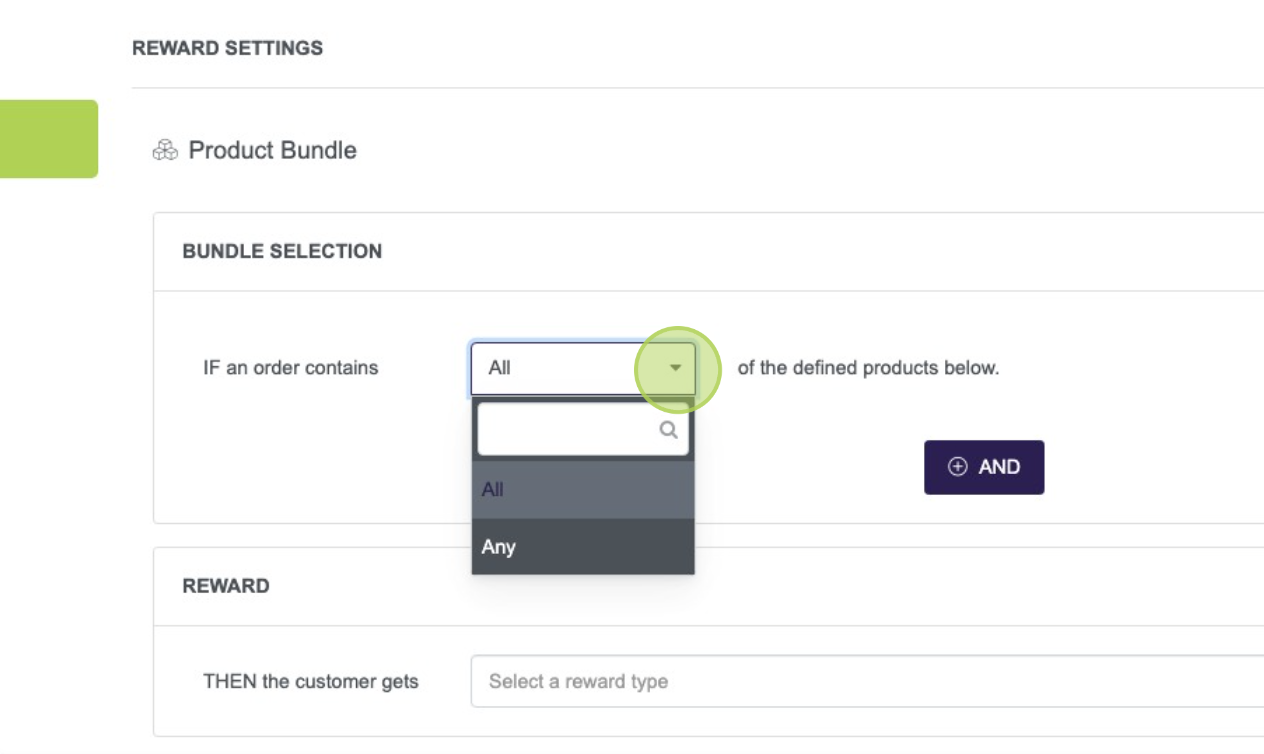
Click AND to start to add to your bundle.
Specify the quantity of products within that particular bundle rule that will need to be added to the order to qualify.
Then decide how to specify the products, they can be:
-
Specific products selected from your product catalogue
-
A Product Group
-
Based on a rule from Product Attributes
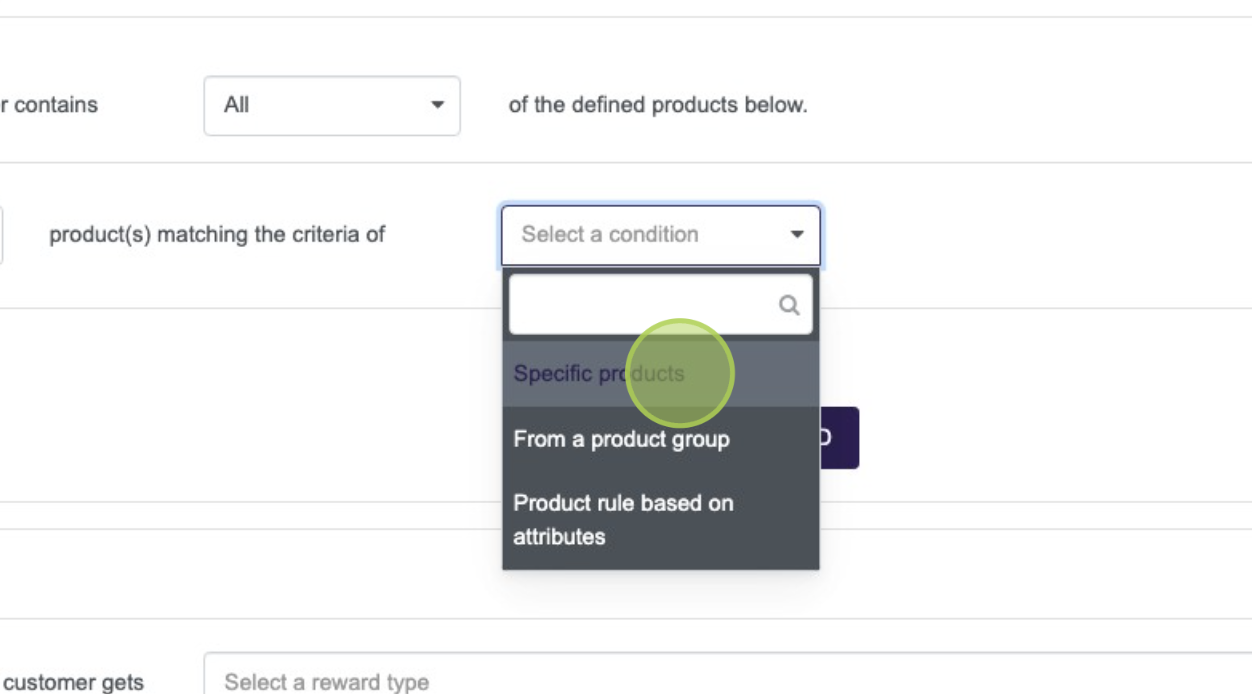
Bundle based on Specific Products
If you have selected 'Specific Products' to add product, press ’Select Products’ and your product catalogue will display.
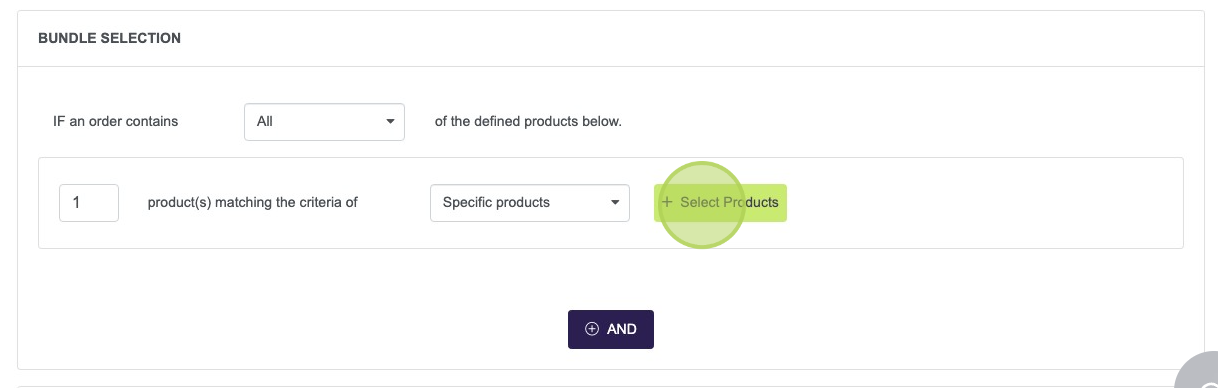
Search for the products you want to add, check them and then press save.
To view the products that you have selected press 'Selected Products'.
Tip! If you choose multiple specific products then the quantity you specify will apply to each product you select. If you want the quantity you set to apply to one of many products use the Product Groups or create the rule based on product attributes.
Bundle based on a Product Group
To build a bundle from your preset Product Groups select 'From a product group' and then press 'select group'.
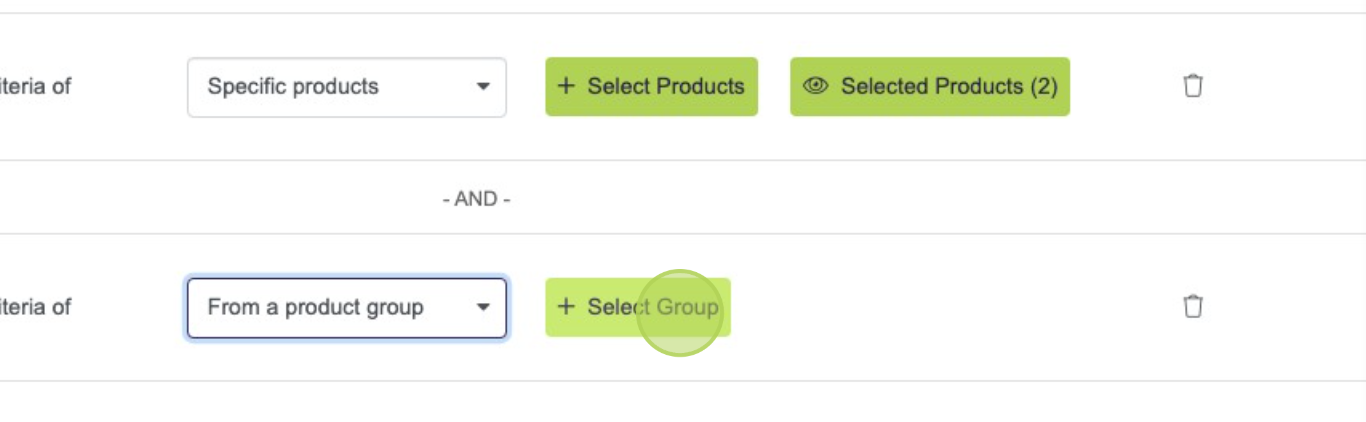
You will be presented with all of you active Product Groups, check the group you wish to select and press save.
The selected Product Groups will be displayed in the rule.
Tip! Need to set up a new Product Group check out this guide
Bundle based on product attributes
If you select 'Product rule based on attributes' press 'Create Product Rule' to open the rule builder.
Click "Please select a rule" which will open all of the available attributes that you can use to create a rule. Product Category and Product Price might commonly come in here.
Once you have selected your attributes, complete the fields that are presented to you. You can combine multiple rules by using the AND/OR button.
Once you have built your rule click "Save" and you will return to the Product Bundle.
Your rule will be displayed and you have the option to update if needed.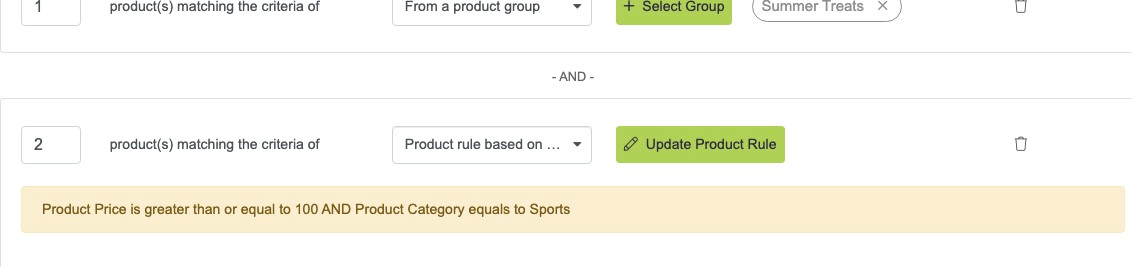
Tip! Product Bundles can contain as many rules as you like, start simple and build from there.
Setting the Reward
Once you have created the bundle and defined what the customer needs to have in their basket in order to qualify for the bundle you can move on to setting the reward type.
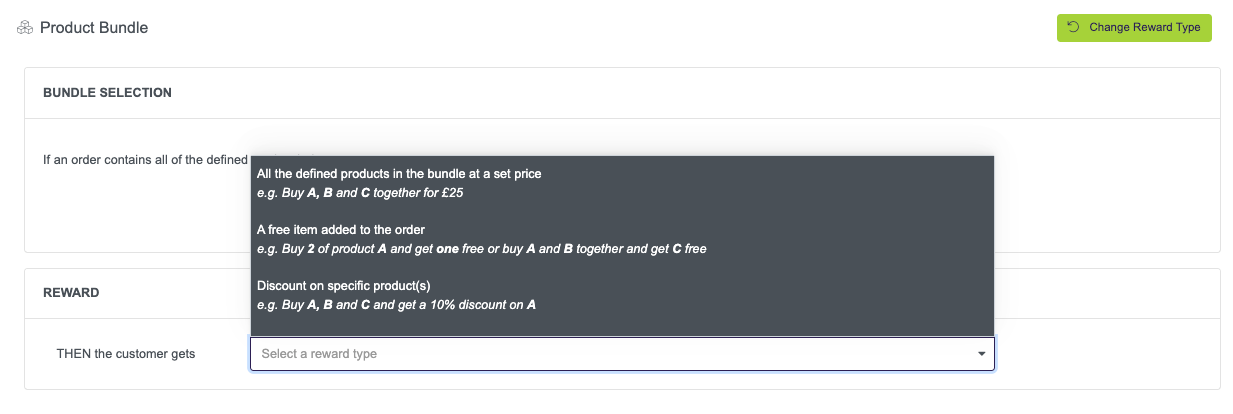
All the defined product in the bundle at a set price.
All that you need to include then is the price that you wish to set for the bundle.
A free item added to the order
Use the product selector to open your product catalogue and select the free item, then set the quantity of free items to add.
Discount on specific product(s)
Set the quantity of the specified product to discount and click ‘Select Product’ to open your product catalogue and select the specific product to discount.
Click "Select a discount type" and choose from:
-
Fixed amount off to discount by a specific amount i.e 10 (pounds)
-
Percentage off to discount by a specific percentage i.e 10 (percent)
-
Set price to give the specified products a new price i.e 15 (pounds)
Then set the desired amount.
Discount on the cheapest product in the bundle
You will be presented with the same options that you had for discount on specific products but the platform will automatically apply the discount type to the cheapest product in the bundle.
Click "Select a discount type" and choose from:
-
Fixed amount off to discount by a specific amount i.e 10 (pounds)
-
Percentage off to discount by a specific percentage i.e 10 (percent)
-
Set price to give the cheapest product a new price i.e 0 (pounds)
Then set the desired amount.
Discount on the whole order
Choose if you want the discount to be a fixed amount off or a percentage off, this will then apply to the whole order should they have added the qualifying Products to their basket.
🎉 Congratulations you have now learnt how to successfully set up a product bundle with reward. In order for your promotion to be live continue with the remaining steps of setting up a promotion.
Tip! You can also use qualification rules along with the product bundle, this comes in really handy if you only want the offer to be available to members of your loyalty programme for instance.