
If you need to write a rule for a set of products that are not related by an attribute you can create groups. Instead of having to pick the products one by one in a rule you can create a group and use that in as many promotions you need to. By following these steps, you can easily group otherwise unrelated products together and streamline your promotional activities.
To set up a Product Group first navigate Settings in the left hand menu and select "Product Groups"
You will be directed to the Product Group List. Here you can see any active Product Groups. Press the hamburger menu to view the products in a group or to archive a group that is no longer needed
To create a new group select 'Create A Product Group'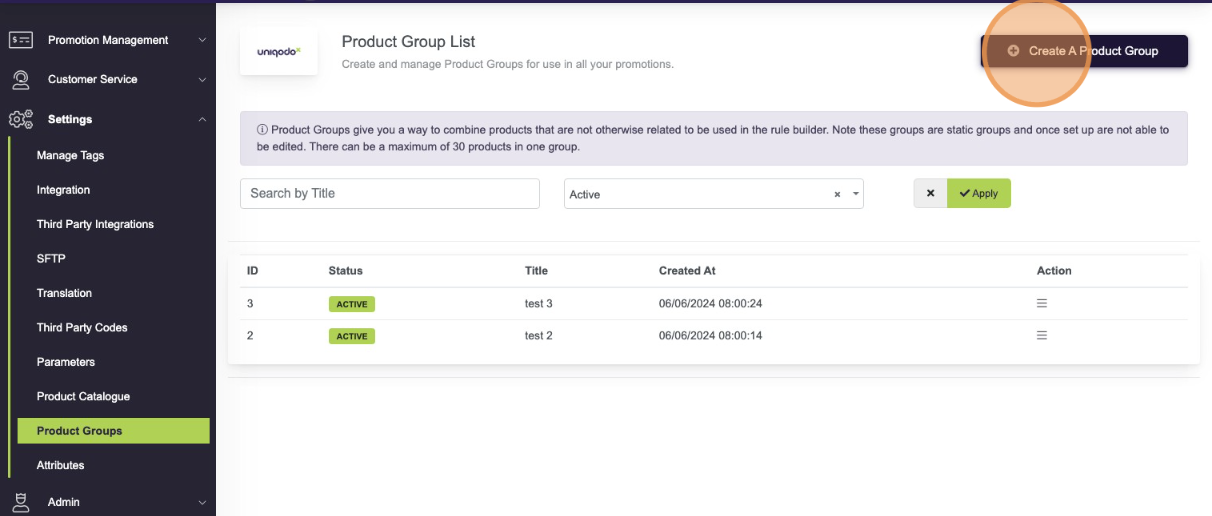
Select "Browse for the product" to view your product catalogue.
Search your Product Catalogue for the relevant products, to add them to the group check them and once happy 'Confirm Selection'
Or you can "Select products from a CSV file", here you will be able to select or drag and drop a CSV file. The file must not have a header row and should be one column with each Product ID on a separate row. Once you have uploaded the products will show in your Product Group and any that could not be found in your catalogue will be displayed.
Up to 1000 products can be added to a Product Group
Check you are happy with your Product Group name and selection of products and then press 'Save'
⚠️ Note: Once a Product Group is created it is unable to be edited so you will be asked to confirm that all of the detail in your group are correct